Project Board
Your Project Board is where we track tasks related to your website and marketing. It is simple to use and we will cover the few things you need to know.
Logging In
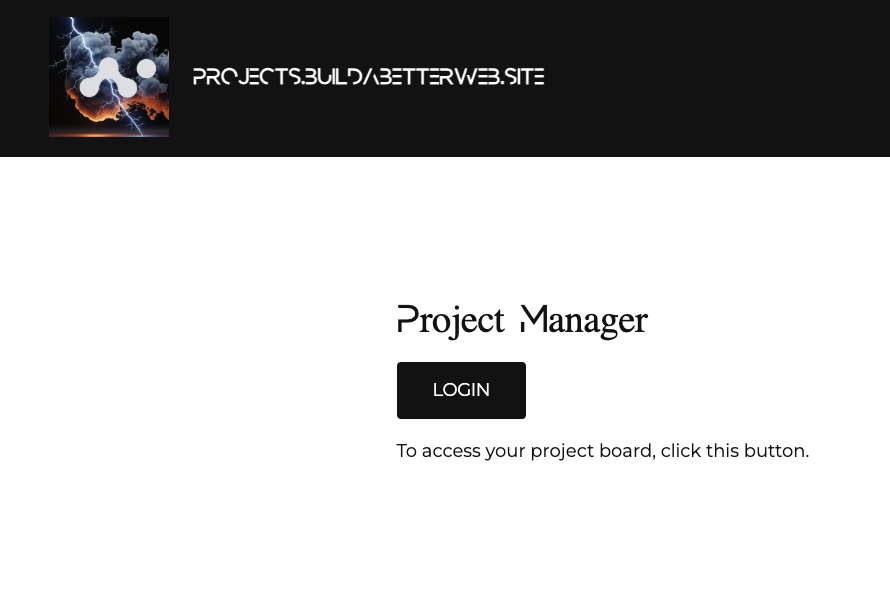
From the homepage you will see a big button under Project Manager titled "LOGIN". Guess what you do with that button..... You guessed it. You click it. This will take you to the login screen.
https://projects.buildabetterweb.site
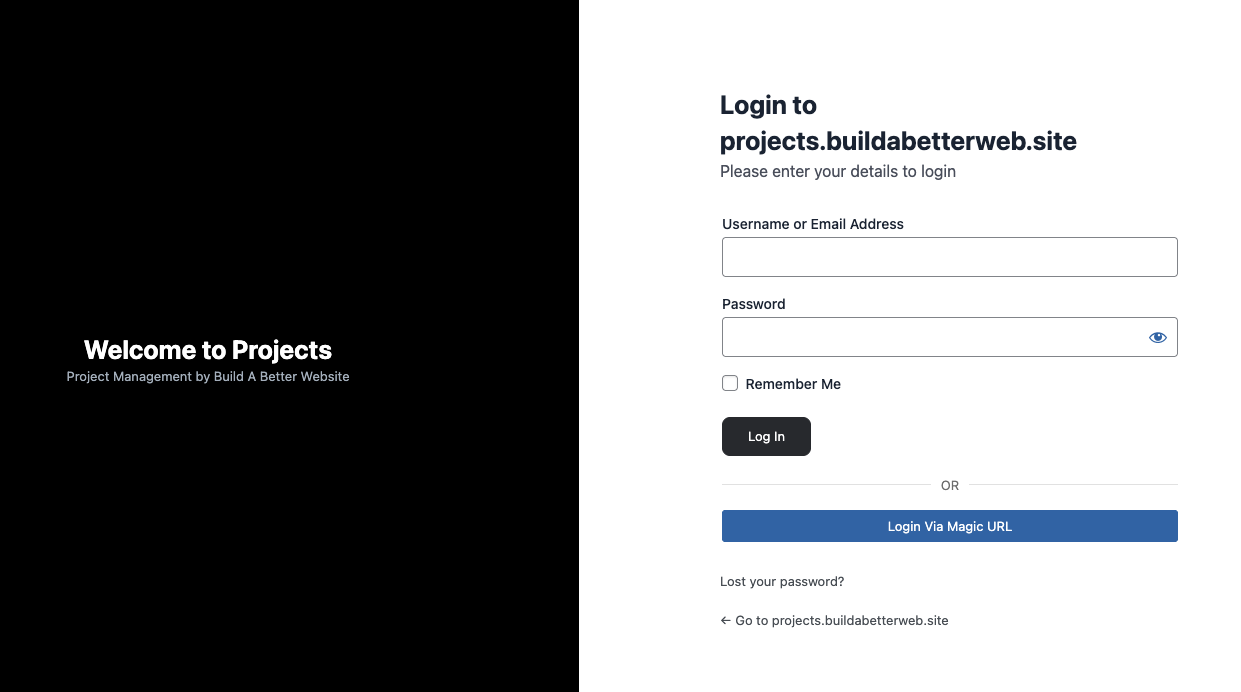
The Login Screen
Now this screen works best if you know your username and password. If you don't remember it, you can click the white button at the bottom titled "Login Via Magic URL"
The Magic URL - What is it?
You first enter your email in the field and then you'll receive an email with a (magic) url to click. This will work for you as it is sent to you if you are already in the system and have a login. Put your email address in the field and click the "Continue" button. Then check your inbox for the link.
Your Dashboard
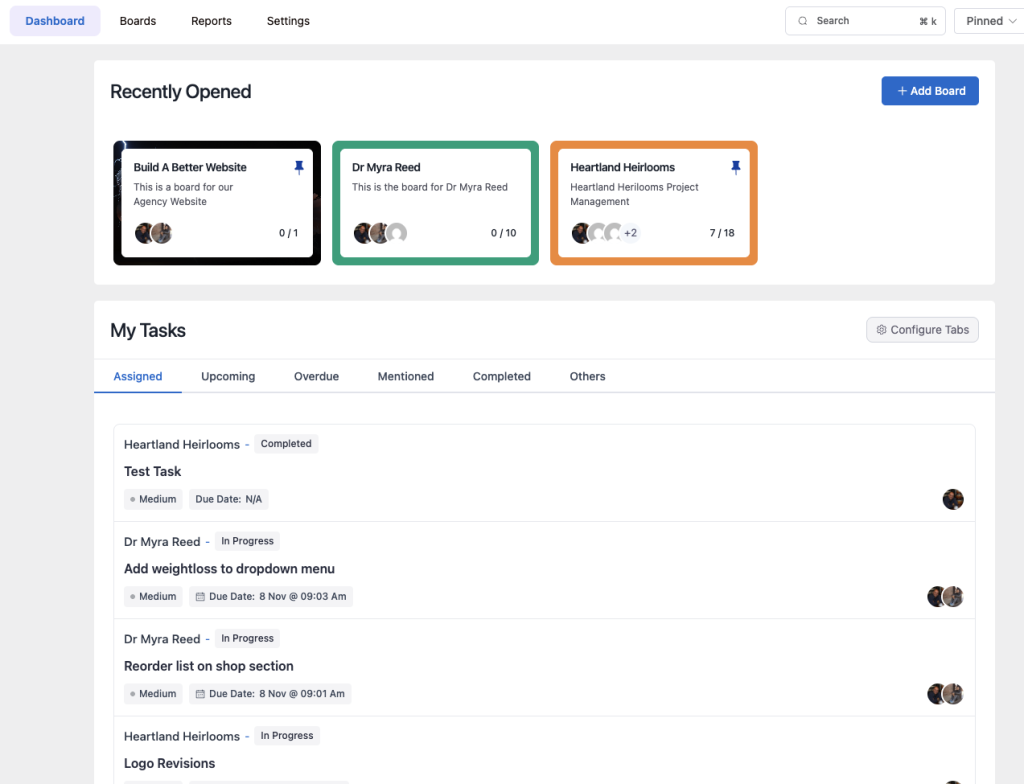
Your Dashboard is a great starting point where you can see all the tasks assigned to you - it shows as "My Tasks". You can click on any of them to see what needs doing and once done, you can mark the task complete.
Creating A Task
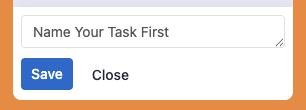
When you need to create a task, you will want to use the link titled.... Add Task. As the link suggests, when you click it, you add a task. The first step is to Name Your Task. Put in a unique name for your task so we all can identify what the task is all about. Try to avoid names like "new task" or "task number one". These cause the team to spend extra time opening tasks to see what they are for.
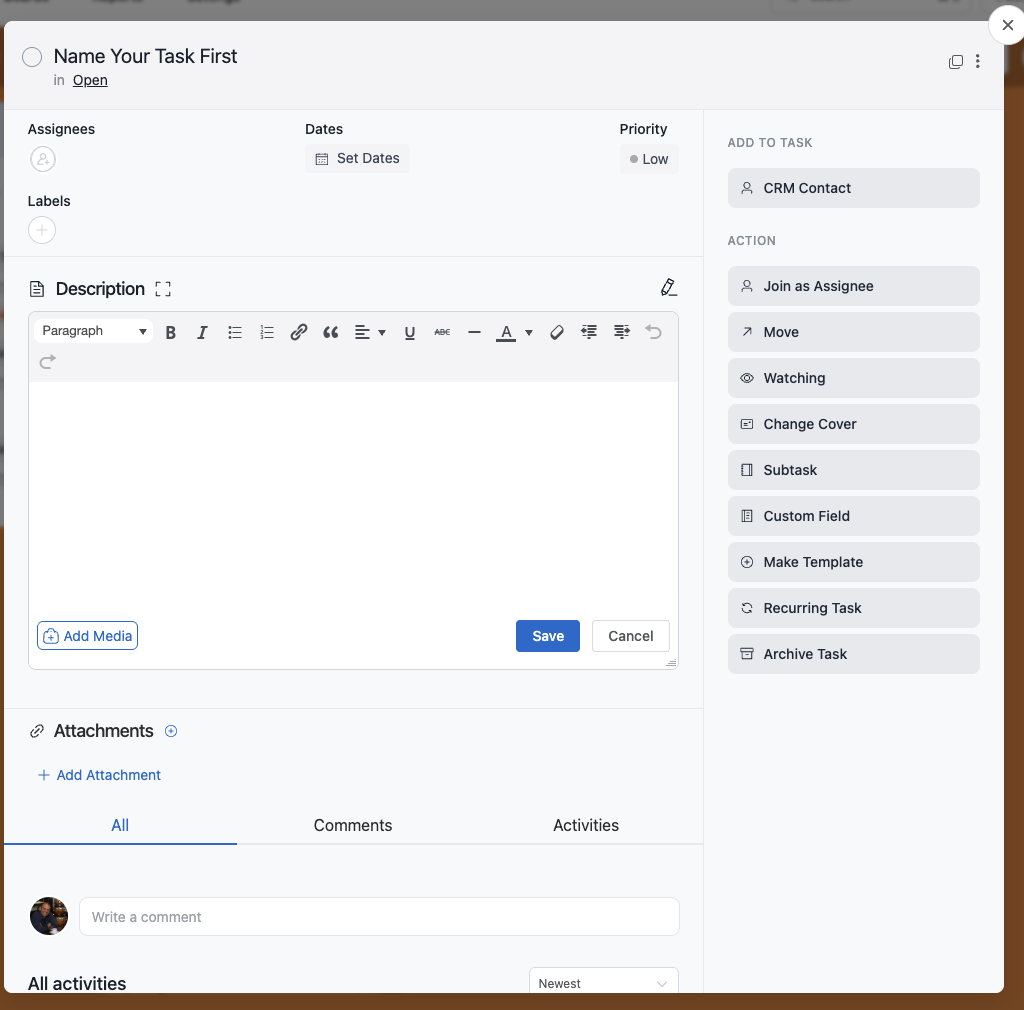
Once named, you can click on the task to open it and add detail. In the screenshot below you'll see some important fields you are going to want to address.
Assignees - this is who gets assigned the task. You can add yourself as a "follower" if you want to track progress.
Dates - put in a due date here for your task. Keep in mind, the turnaround on task is typically 3 business days.
Priority - We do our best to tend to Urgent tasks, but please don't mark all your tasks as urgent. Allow for a few days to get tasks done and only mark urgent tasks that are causing critical issues.
Description - Use this field to describe what needs doing. Identify the specific page or location for this task and be as descriptive as possible. You can paste in any text you want for your task so we can copy & paste. BE SURE TO CLICK THE "SAVE" BUTTON"
Attachments - use the + Add Attachment link to upload any images or videos associated with your task.
When you're done entering the task details, click the X in the top right corner. Assignees will receive a notification they have a new task assigned to them automatically.