
How Can We Help?
-
Sales and Marketing
-
Operations and Logistics
-
Using Support
-
Getting Started
-
Web Services Explained
- Yelp
- UI/UX Design
- Social Media Strategy
- Reviews - Testimonials
- Photography
- Optimize Social Media Accounts
- Mobile Responsive Design
- Mailing Lists
- Legal Pages
- eCommerce
- Chat Bots
- Google My Business
- Branding
- Email Accounts
- Accessibility
- What is a Digital Business Card?
- SEO - Search Engine Optimization
- Show Remaining Articles (2) Collapse Articles
-
Tutorials
-
Website Evaluation
-
Update Your Website Yourself
-
Social Media Services
-
Contact Us
< All Topics
Print
GoDaddy Delegate Access
Posted
Updated
Bydave@betterwebdesigner.com
When you have a minute, can you provide us with “delegate access” to your domain account with GoDaddy?
It’s really easy:
Step 1: Log into your GoDaddy Account
Step 2: Click on the Account Settings Dropdown
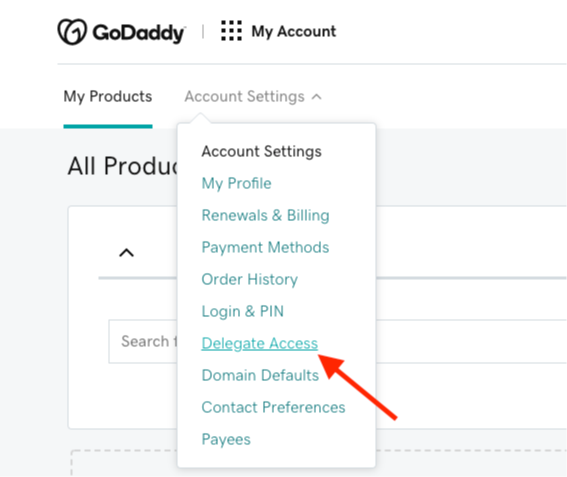
Step 3: Select “Delegate Access” (see attachment)
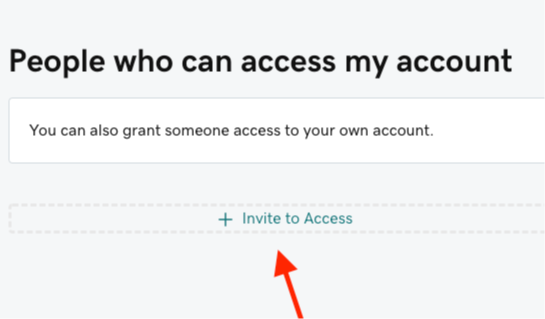
Step 4: Click on the link titled “Invite to Access” on the right hand side
Step 5: Put in my name and email address
Dave Hooper
Step 6: Click the “Products, Domains, & Purchase” radio button. (see attachment)
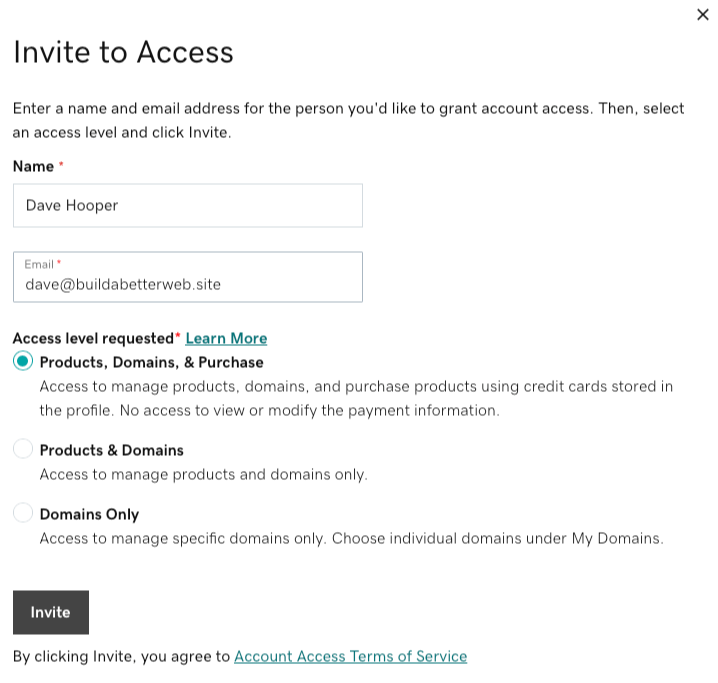
Step 7: Then click the “Invite” button
That’s it!
Table of Contents